


Introduction to Exporting Data
AcceleratorApp allows you to export data from multiple sections of the platform, giving you the flexibility to analyze information externally, share reports with stakeholders, and maintain structured records.
Export permissions are controlled by your Admin through User Role Settings. If you do not see the export option in a section, contact your program administrator to adjust your permissions. All exports are processed in the background. Once generated, files can be retrieved from Export History — accessible via the Profile Menu in the top-right corner of the platform.
Where to Export From
Exports are available from several sections across the platform. Each is covered below.
Step-by-Step
1. Exporting Applications
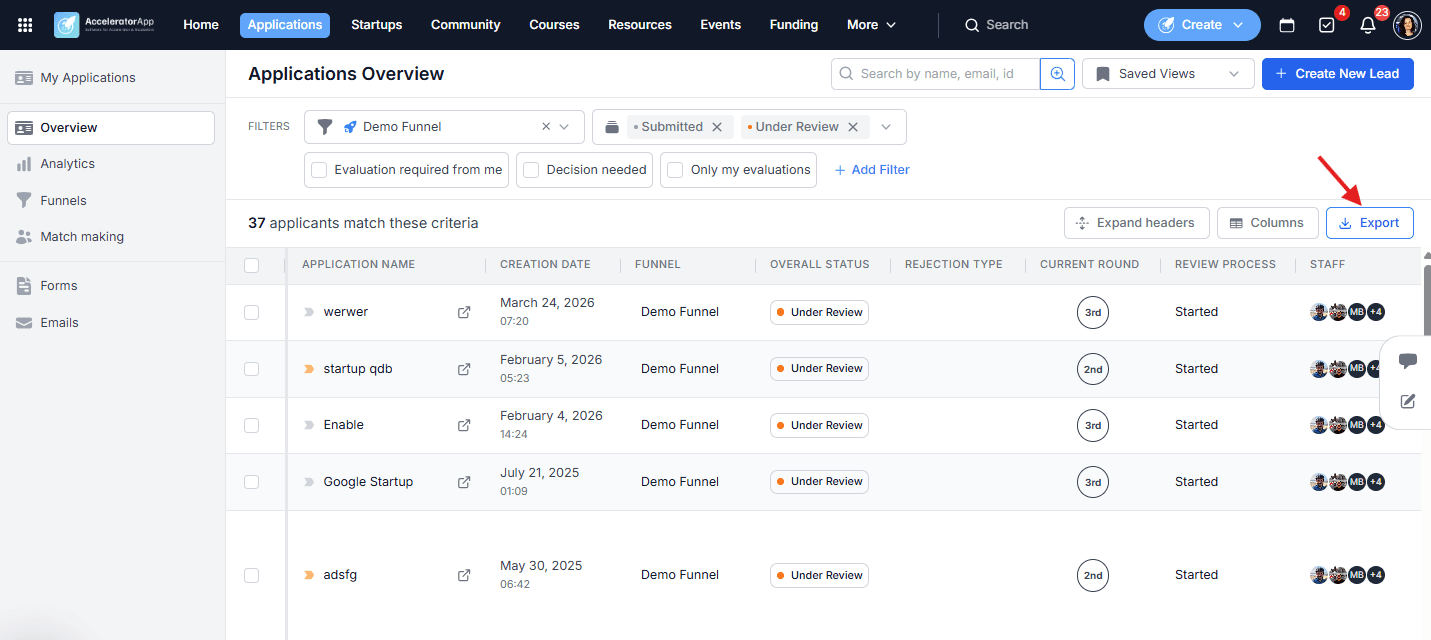
From the Applications Overview, you can export application data with full control over which columns are included:
- Click on Applications in the top menu.
- Click Export.
- Use the Columns button to add or remove fields before exporting.
- Apply filters beforehand to export only the relevant subset of applications.
For more details on configuring columns and filters before exporting, see Introduction to Application Export.
2. Exporting an Individual Application File
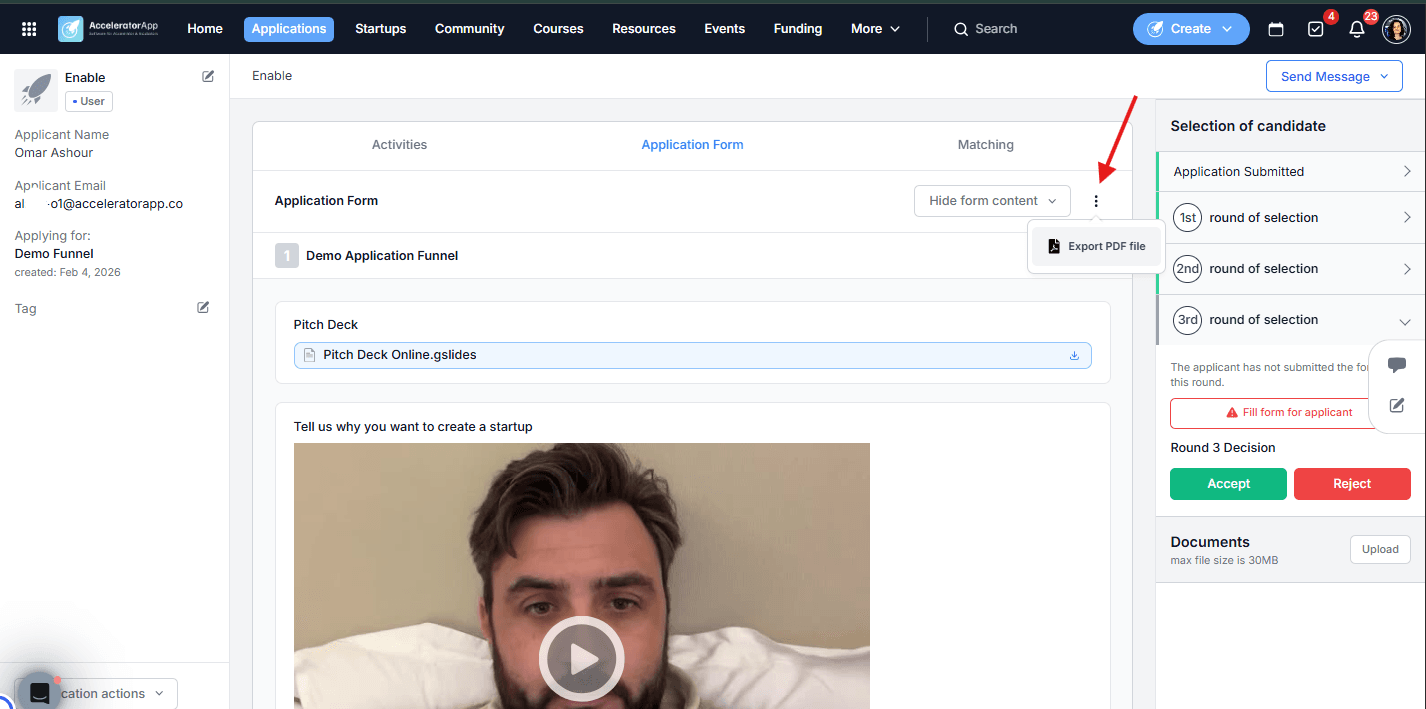
To export a single application as a PDF:
- Click on Applications in the top menu and open the relevant application file.
- Navigate to the Application Form tab and click Export.
3. Exporting Startup Data
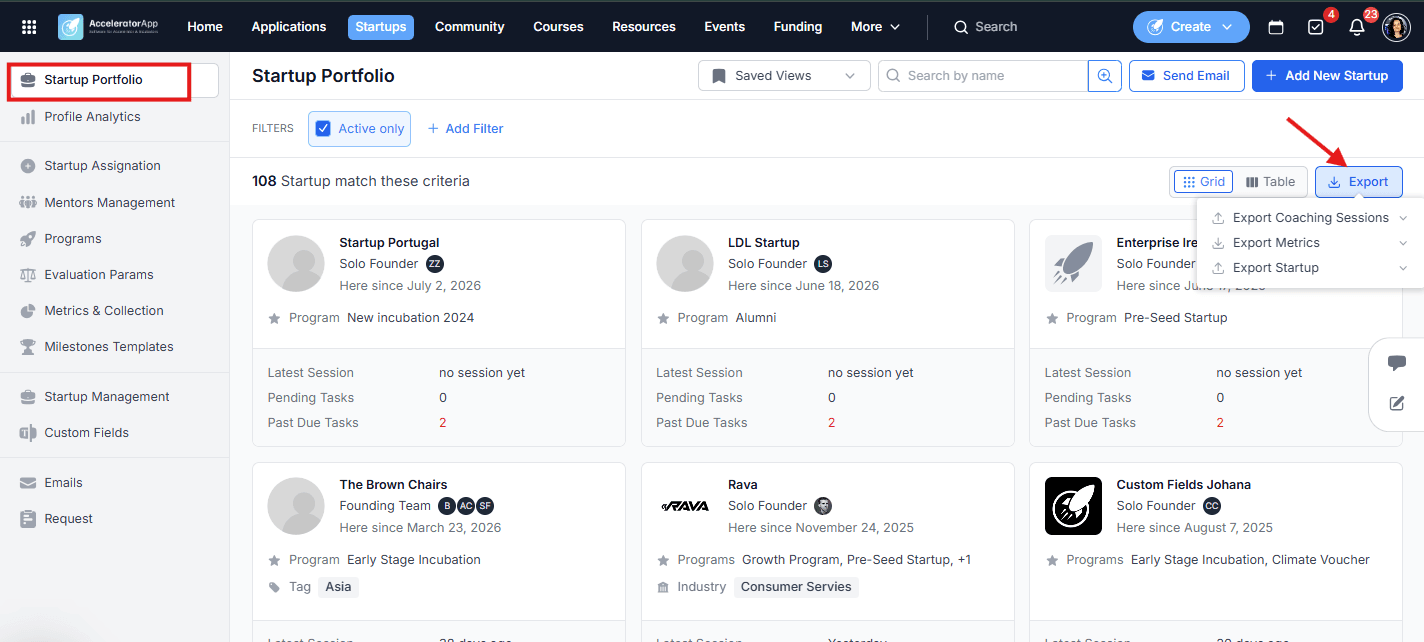
From the Startup Portfolio, you can export three types of data:
- Click on Startups in the top menu.
- Click Export and choose from:
- Export Coaching Sessions — coaching activity data for all startups.
- Export Metrics — startup metrics data in formatted or raw format.
- Export Startups — startup profile data.
For more details on metric export formats, see How to Export Startup Metrics and Data.
4. Exporting Startup and Founder Reports
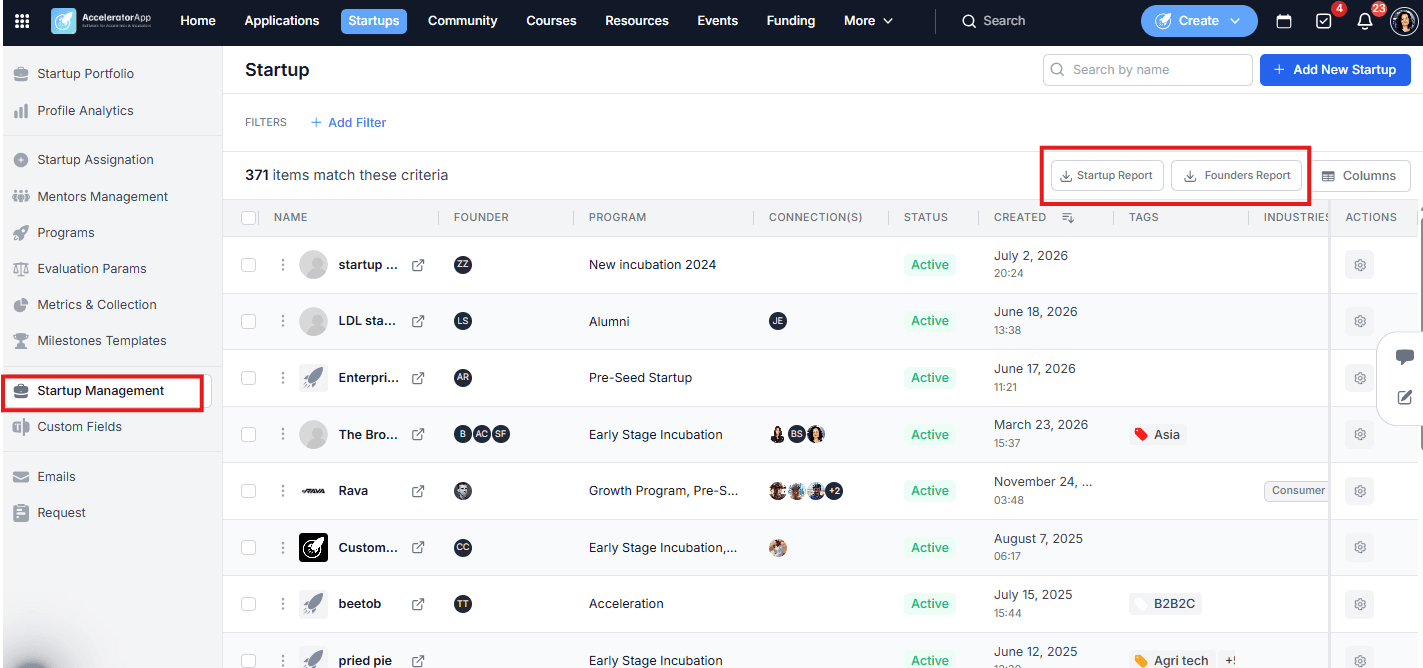
- Click on Startups in the top menu and select Startup Management.
- Click Startup Report or Founders Report to export the relevant data.
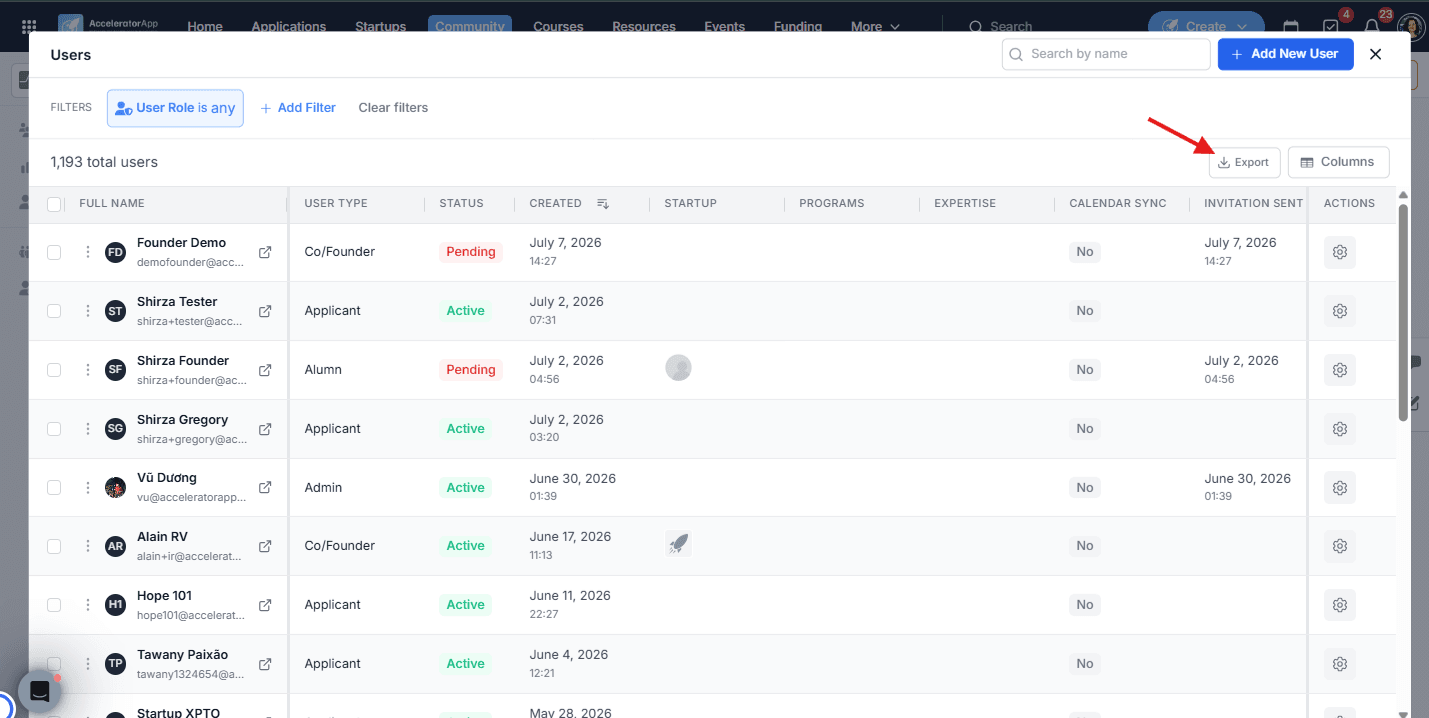
5. Exporting User Data
- Click on Community in the top menu and select User Management.
- Click Export to download user information including the custom fields from each user's profile.
Best Practices
- Check your export permissions first. If the export button is not visible, contact your Admin to confirm your role has the necessary access.
- Always retrieve your file from Export History. Exports are not downloaded immediately — go to the Profile Menu > Export History and wait for the status to show Completed before downloading.
- Apply filters before exporting. Exporting only the data you need keeps files clean and easier to work with — use filters to narrow down applications, users, or startups before clicking Export.
- Save your filter and column configuration as a view. If you export the same data regularly, save it as a Saved View so you can re-apply the configuration in one click next time.
Additional Resources
- Introduction to Application Export
- How to Export Startup Metrics and Data
- Export History
- How to Create Saved Views in the Startup Portfolio?
- Community — People and Startups